On RxTro, your Territory or Catchment Area is the geographic location where you intend to focus your primary care interactions.
Adding Territory or Catchment area to your account is the first step towards booking your GP appointment. Fixing your territory to your profile determines the area and the GP clinics you want to target based on State, Area Block, and Suburb.
This step is essential since without adding clinics to your Territory, you will not be able to see slot availabilities or Book your GP appointment.
Let's get started!
1. Log in to your RxTro account
Use the login details sent to your email, or the personal password you created via Forgot Password.
Once logged in, you will land on your dashboard.
2. Navigate to “Add Customers”
At the Sub-navigation bar, click: "Add Customers"
This is where you define your Territory by selecting your preferable catchment area and clinics you want to target.
3. Select your Territory (State, Area Block & Suburb)
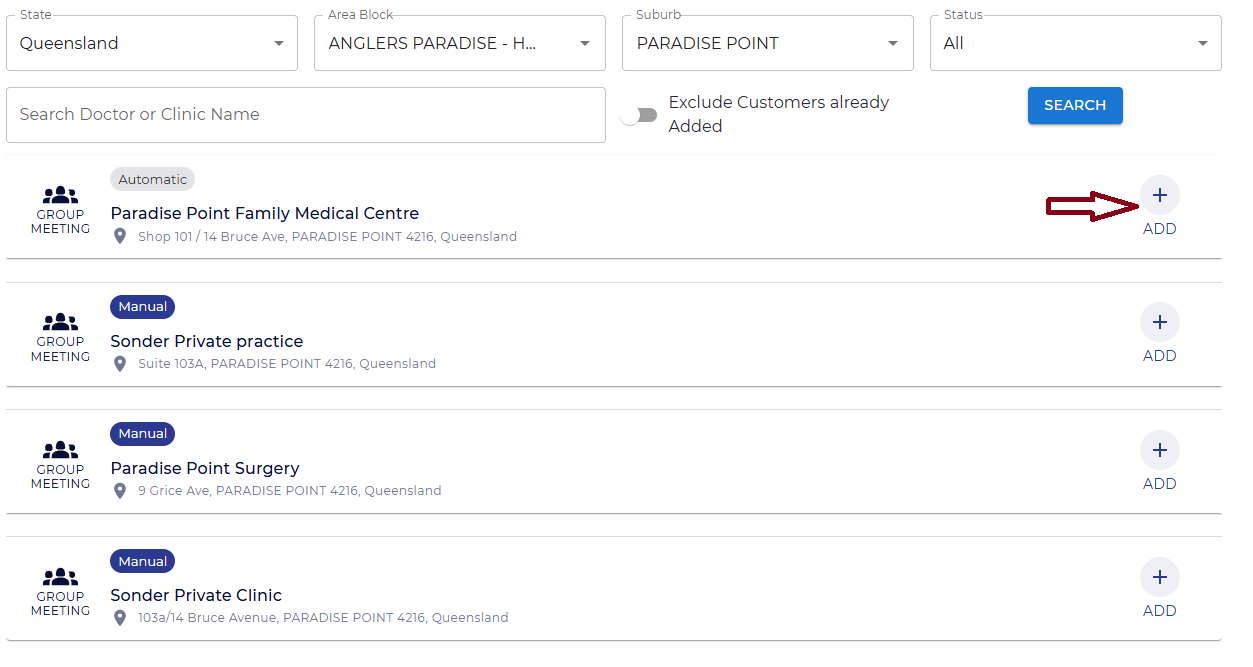
From the dropdown filters at the top of the Add Customers page, select the locations where your target GP clinics operate.
You can filter by:
-
State
-
Area Block
-
Suburb
-
Status (All, Available, Blocked, Manual)
For your convenience, RxTro has subdivided each State into Area Blocks, making it easier for you to select and refine your Territory or Catchment Area without searching through the entire state manually.
If you notice that an Area Block or specific location is missing, please let us know and we will ensure it is added to our system.
4. Search for a specific clinic or doctor
If you cannot find the clinic or doctor you are looking for using the filters, simply use the search bar provided.
Type the doctor’s name or clinic name into the search box below.
RxTro will display the clinic the
doctor works in, along with all available details so you can add them
to your Territory.
5. Add the clinic to your Territory
Once you locate the clinic you want (either through filters or by using the search bar) you can add it to your account.
Click the “+” (Add) icon next to the clinic name.
This will add the clinic to your
Territory, and it will appear under My Customers as one of your preferred customers.
You can repeat this process to add as many clinics as you need.
6. Add more clinics as needed
After you click the Add (+) button, the clinic
is saved to your Territory.
You
can continue browsing the list or adjusting your filters to find other
clinics in the same area.
Add as many clinics as you want — there is no limit.
7. Review your clinics under “My Customers”
Once you have added your preferred clinics, go to:
Top Menu → My Customers
Here, you can:
-
View all clinics added to your Territory
-
Confirm that the correct clinics are listed
-
Explore available appointment slots (if any are visible)
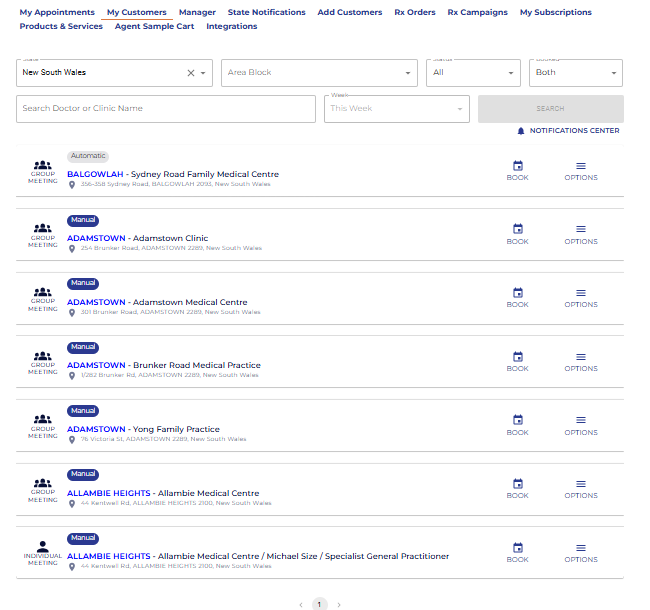
My Customers is where you will come to book your appointments, and it serves as your personal directory of all the GP clinics you have added to your Territory.
Ready to book your first appointment? If you have already added your territory, simply head to My Customers and explore 'How to activate my Rxtro account & book my first GP appointment?'.