Follow these steps to create your RxTro account and begin your onboarding journey. This process includes verifying your email, completing your registration form, and setting up your subscription.
1. Go to RxTro.com and click “Join RxTro”
Visit www.rxtro.com and select 'Start
Connecting' from the homepage.
This opens the registration page.
2. Enter your details
When the form opens up, fill-in the following information to create your account:
-
First name
-
Last name
-
Email address
Once complete, click “Create an account.”
3. Complete the Registration Questions
After clicking Create an account, you will be guided through a series of short questions to help RxTro understand your role and organisational details.
You must complete all steps before your account can be created.
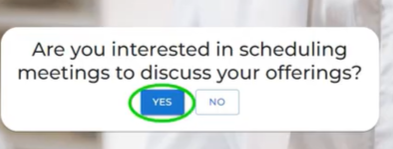
a. Confirm your intention to schedule meetings
You will be asked:
“Are you interested in scheduling meetings to
discuss your offerings?”
Click YES to continue if you want to book a GP
appointment or meet GPs to discuss your offerings.
b. Key-in your organisation details:
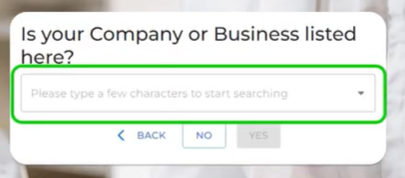
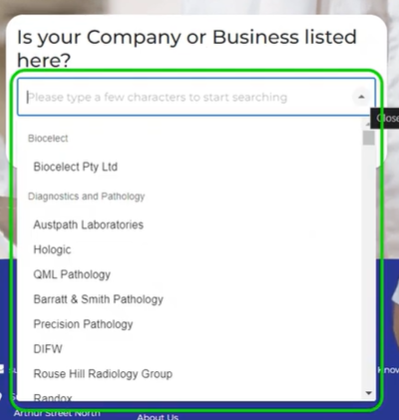
You will first be asked to identify your organisation.
- If your organisation is listed, click 'yes' and it will appear as you begin typing. Select from 4000+ organisations listed in our drop-down menu.
-
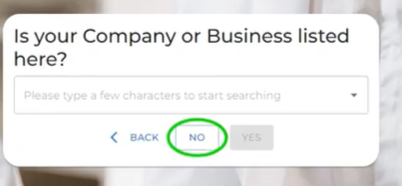
If your organisation is not listed, click 'NO' you can enter it manually in the same field.
C. Review your information
After entering your details,
RxTro will display a summary of the information you provided.
Review this carefully to ensure
everything is correct.
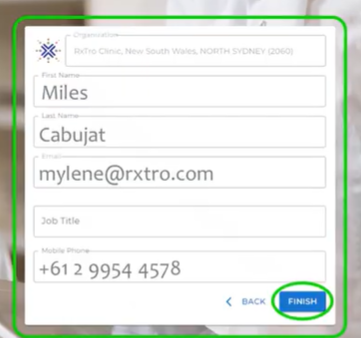
Once all details are correct, click Finish to submit your information.
If you need to make changes, use the Back button.
4. Check your mail for login details:
After clicking Finish, RxTro will send
your login details to
the email address you provided during registration.
This email includes:
-
Your username (email)
-
A temporary password
-
A link to log in to RxTro
If you do not see the email, check your Spam or Junk folder.
5. Create your personal password
Once you receive the temporary password, we strongly recommend that you immediately select the “Forgot Password” option on the login page.
This allows you to:
-
Create your own secure password
-
Ensure your account remains protected
-
Avoid using the system-generated temporary password long-term
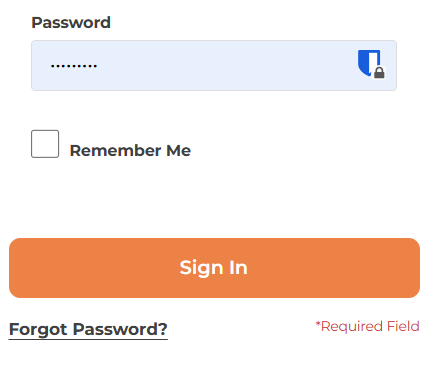
6. Log in to view your account dashboard
After you log in using the temporary password (or after creating your own password via Forgot Password), you will be taken to your RxTro dashboard.
Here, you will see your profile card, which displays:
-
Your name
-
Your organisation
-
Your role / job title
-
Your email address
-
Your mobile number
At this stage, your account is active, and you can proceed to complete the remaining setup steps such as:
-
Add your preferred catchment area/territory & customers
-
View primary care clinics with open meeting slots in that area
-
Setting up your Subscription by selecting your appropriate pricing plan
-
Booking meetings


 AUS
AUS
 can
can