This guide explains how to set up and configure Halo Link in RxTro, enabling seamless synchronisation of appointments from RxTro to Best Practice.
Please make a note of the clinic's
BP Site ID number. This can be found under the
tab:
Help/About/Site ID
Software Requirements
- The most recent version of Java.
1. Best Practice – Configuration
1.1 Enable RxTro–Halo
-
In Best Practice, go to Settings > Configuration > Database > Set Up Third Party Configuration.
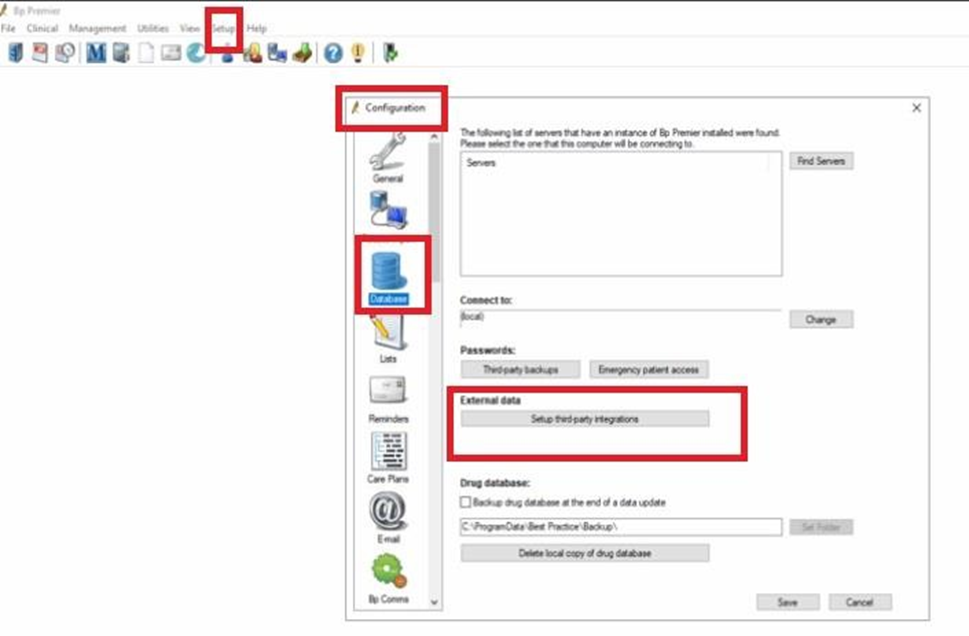
- Tick RxTro–Halo
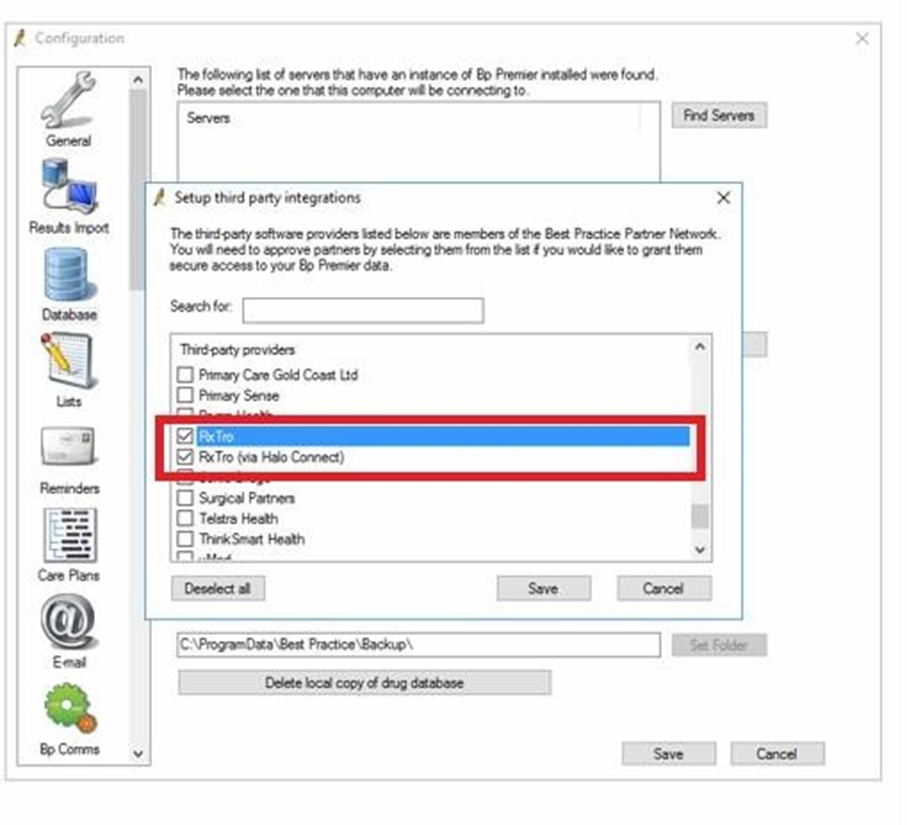
Please make a note of the clinic's BP Site ID
number. This can be found under tab:
Help/About/Site ID
Tip: Installing Halo Link
If you are unable to validate your BP Site ID in RxTro, it usually means Halo Link has not been installed on the server.
👉 Please refer to Best Practice’s official Halo Link installation guide for full setup instructions and system requirements.
⚠️ The integration will not work unless Halo Link is installed and running correctly.
2. RxTro – Setting Up the Integration
2.1 Enable Appointment Sending
-
Log into the clinic’s RxTro account.
-
Go to the Practice Instructions tab.
-
Under Send RxTro Appointments to, select Send Via Halo Link and click Save.
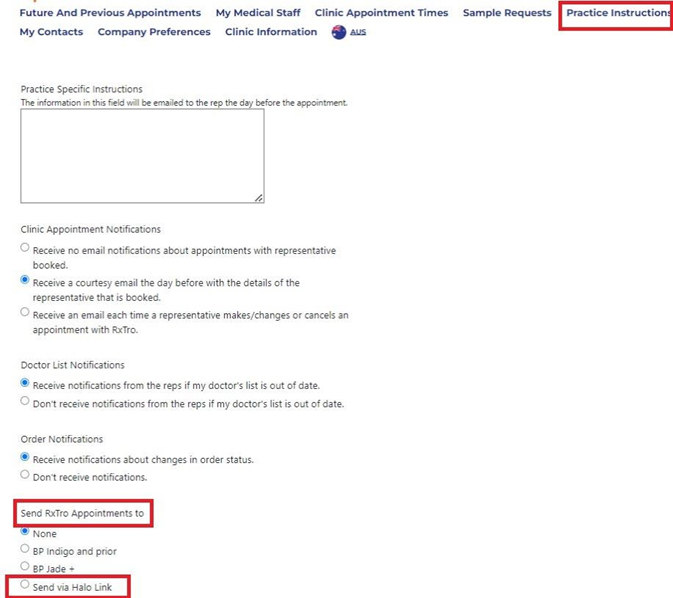
2.2 Configure Halo in RxTro
-
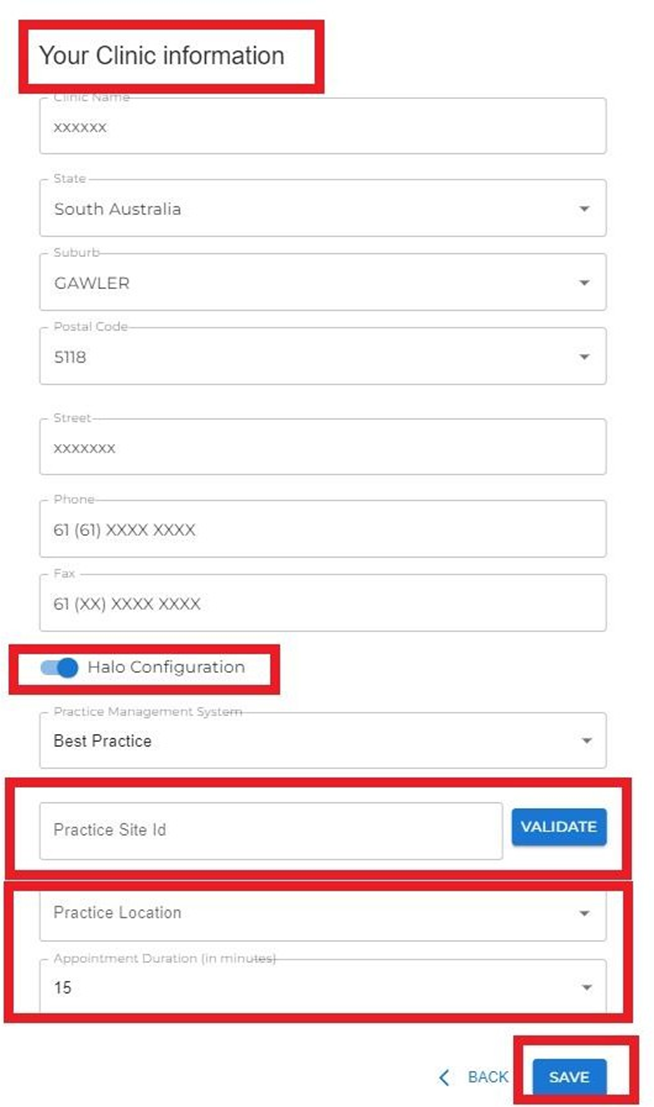
Go to the Clinic Information tab.
-
Click the edit icon under the clinic’s information card.
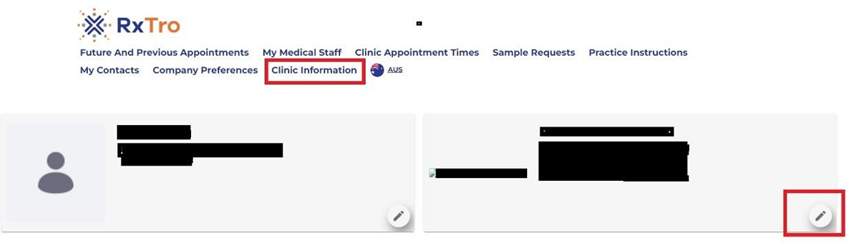
- Slide the Halo Configuration toggle to the right and click Save.
-
Enter the BP Site ID number and click Validate.
-
Select the Practice Location (appears only if the Site ID is valid).
-
Set the appointment duration time and click Save.
2.3 RxTro – My Medical Staff Syncing
-
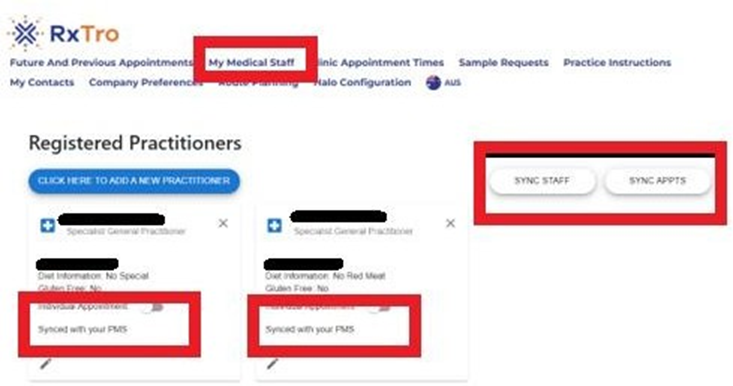
In RxTro, go to My Medical Staff.
-
Click Sync Staff and Sync Appointments.
-
Ensure each doctor shows as synced with your PMS.
2.4 RxTro – Future Appointments Syncing
-
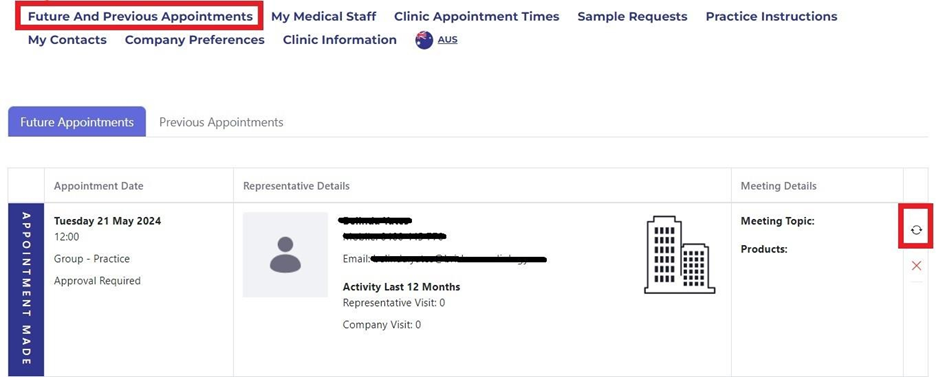
In RxTro, go to Future Appointments.
-
For each appointment, toggle Resend to your PMS.
-
Cross-check in Best Practice that the appointments appear on the correct day, marked as online appointments.
Note:
In case of any errors, troubleshoot using the below steps as applicable:
-
Site ID Invalid (Step 2.2):
If the Site ID does not validate, the clinic has not installed Halo Link correctly. Reinstall using the official instructions, then retry. -
Doctors Not Syncing (Step 3.3):
Check that the doctor’s AHPRA number matches exactly in both Best Practice (Setup > Users) and RxTro. If mismatched, update and resync.
Conclusion
Once you have completed these steps, your clinic will be fully set up—with Best Practice and RxTro linked through Halo Connect so that rep appointment bookings flow smoothly between the two systems.
If things are not syncing, or you have problems with it, the first step is often the simplest: try resetting the connection and check again.
Also, keep in mind that system upgrades (whether in RxTro, Best Practice, or your server) can sometimes interrupt the link. This is normal and can usually be resolved quickly.
And remember—RxTro is always your most up-to-date record of rep bookings, so if there’s ever a mismatch, rely on RxTro first.


 AUS
AUS
 can
can